

The two money flows
Within a Treasury Account there are two ways money moves:Deposit
Moving funds into the Treasury Account.
Transfer
Moving funds out of the Treasury Account to a recipient.
For a full walkthrough of moving money out, see the transfer flow. This page covers what Treasury Accounts are and how to deposit into one.
Supported currencies
Treasury Accounts support AUD. You can open, deposit into, and transfer from a Treasury Account in Australian dollars.Treasury Account currency support is separate from payin and payout support, which covers a much wider range of currencies. JPY payins, for example, are supported through P2C bank transfer. For the current list of supported currencies and payment methods, see payment methods and currencies.
Finding your account details
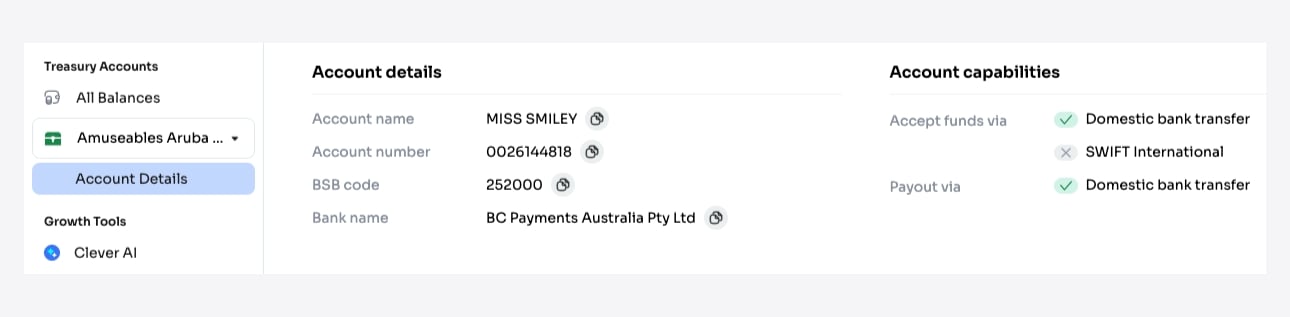
- Account name: the legal name on the account (for example, UMBRELLA COMPANY).
- Account number: the unique account identifier.
- BSB code: required for AUD accounts.
- Bank name: the name on the account.
Deposit flow
Once a Treasury Account has been created, you can simulate a deposit to confirm that incoming funds are received and credited correctly.Simulating an AUD deposit (TestBank)
For AUD accounts, use the TestBank simulator athttps://test-bank.cleverhub.co/bsb-info, which mimics a payment from a customer’s bank account.
1
Open TestBank and choose the tab
Open the TestBank page and select the BSB & Account Number tab.
2
Enter the account details
Enter the Treasury Account’s account holder name, BSB number, and account number, copying these from the merchant dashboard.
3
Continue
Click Next.
4
Enter an amount
Enter the amount you want to deposit. You can pay the exact amount, or deliberately under-pay or over-pay to test edge cases.
5
Pay
Click Pay Now. To run another test, click Pay another to reset the form and start again.
Where to find app-id and secret-key
Some API calls (including simulating a transfer outcome) need your store’s app-id and secret-key. The two values come from different places.
app-id
Found in the Account Details tab, the App ID is displayed under the account name, obfuscated. You can copy it by using the copy button.
secret-key
Found in the merchant dashboard profile menu, under Authentication → Auth 2.0. Use the Primary secret key and copy it with the copy icon.